Continue Session When Claude Usage Resets
Claude code new model Fable consume context like Galactus devours planets. Ran a big planned task execution on dynamic workflow and ended up exhausting my session in 50 mins. My session was about to reset in 4 hours 10 mins and I had to sleep in 30 mins. Chatgpt to rescue and I built this automation to restart a task when claude code usage resets.
Here is launchd + AppleScript setup I landed on.
Sleep vs lock
The first thing worth getting straight: sleep and lock are different states.
pmset -g
On my machine:
sleep 0
displaysleep 0
My Mac stays on while plugged in. So the question was whether launchd agents run on a locked screen, they don't for UI automation (AppleScript keystrokes, clicks, Accessibility interactions).
For this to work:
- Mac powered on
- User logged in
- Screen not locked
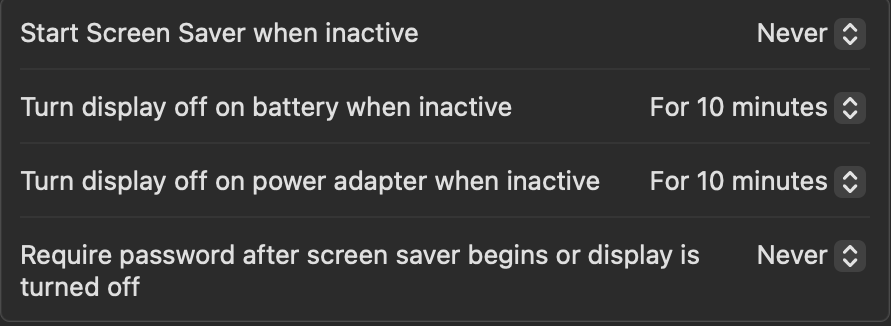
Here is the setting for mac lock screen
Finding the click target
I used macOS Accessibility Inspector to find the prompt box coordinates then hardcoded a stable click position.
Open Accessibility Inspector, hover over the Conductor prompt, note the coordinates. Mine landed at {853, 935}. Yours will differ depending on window size and position.
The script
~/Scripts/conductor_continue.sh:
#!/bin/bash
/usr/bin/osascript <<'APPLESCRIPT'
tell application "Conductor" to activate
delay 1
tell application "System Events"
    click at {853, 935}
    delay 0.2
    keystroke "continue"
    key code 36
end tell
APPLESCRIPT
key code 36 is Enter. Make it executable:
chmod +x ~/Scripts/conductor_continue.sh
Conductor should open, click the prompt and submit. If it does, you're ready.
The launchd job
Create ~/Library/LaunchAgents/com.user.conductorcontinue.plist:
<?xml version="1.0" encoding="UTF-8"?>
<!DOCTYPE plist PUBLIC "-//Apple//DTD PLIST 1.0//EN"
"http://www.apple.com/DTDs/PropertyList-1.0.dtd">
<plist version="1.0">
<dict>
    <key>Label</key>
    <string>com.user.conductorcontinue</string>
    <key>ProgramArguments</key>
    <array>
        <string>/Users/USERNAME/Scripts/conductor_continue.sh</string>
    </array>
    <key>StartCalendarInterval</key>
    <dict>
        <key>Hour</key>
        <integer>4</integer>
        <key>Minute</key>
        <integer>51</integer>
    </dict>
    <key>StandardOutPath</key>
    <string>/tmp/conductor_continue.log</string>
    <key>StandardErrorPath</key>
    <string>/tmp/conductor_continue.err</string>
</dict>
</plist>
Replace USERNAME with your actual macOS username. Load it:
launchctl bootstrap gui/$(id -u) ~/Library/LaunchAgents/com.user.conductorcontinue.plist
launchctl print gui/$(id -u)/com.user.conductorcontinue
If it's already loaded, bootout first (run this after every change to plist):
launchctl bootout gui/$(id -u) ~/Library/LaunchAgents/com.user.conductorcontinue.plist
launchctl bootstrap gui/$(id -u) ~/Library/LaunchAgents/com.user.conductorcontinue.plist
Trigger it immediately to verify:
launchctl kickstart -k gui/$(id -u)/com.user.conductorcontinue
To disable it entirely (survives reboots):
launchctl disable gui/$(id -u)/com.user.conductorcontinue
launchctl bootout gui/$(id -u) ~/Library/LaunchAgents/com.user.conductorcontinue.plist
launchctl disable marks the service as permanently disabled in launchd's database — the plist stays in ~/Library/LaunchAgents/ but won't be loaded on next login. bootout unloads it from the current session.
To re-enable later:
launchctl bootstrap gui/$(id -u) ~/Library/LaunchAgents/com.user.conductorcontinue.plist
One-time run with at
launchd is for a recurring fire. If you just want to run the script once at a specific time, e.g. the moment your session resets, at is simpler. No plist, no bootstrap.
at ships disabled on macOS. Enable the daemon once:
sudo launchctl load -w /System/Library/LaunchDaemons/com.apple.atrun.plist
Then schedule a one-shot. Relative to now:
at now + 4 hours -f ~/Scripts/conductor_continue.sh
Or at an absolute time:
at 04:51 -f ~/Scripts/conductor_continue.sh
Check what's queued with atq and cancel a job with atrm <job-id>. Same screen-not-locked caveats apply for the AppleScript version; the tmux body below runs fine locked.
Claude Code CLI version
If you're running Claude Code in a terminal, skip the AppleScript entirely. Run Claude inside a tmux session and replace the script body with:
#!/bin/bash
tmux send-keys -t claude "continue" Enter
The plist is identical. This is more reliable because it doesn't depend on window coordinates or Accessibility permissions at all. This also works even if your screen is locked because UI is not automated here. So you can pair with caffeinate and additionally use pmset to wake before the launchd fire.